Azure AI Completion
Follow these steps to set up an Agent with Azure AI Completion.
Step 1: Find the API Key and Endpoint in Azure OpenAI Playground
- Visit: https://oai.azure.com/portal (Or go to the Azure portal, navigate to your OpenAI resource, and click "Playground" in the sidebar.)
Step 2: Open the Playground Settings
- In the top-right corner of the Playground, click the "View Code" button.
- This opens a panel showing how to call the current model via API.
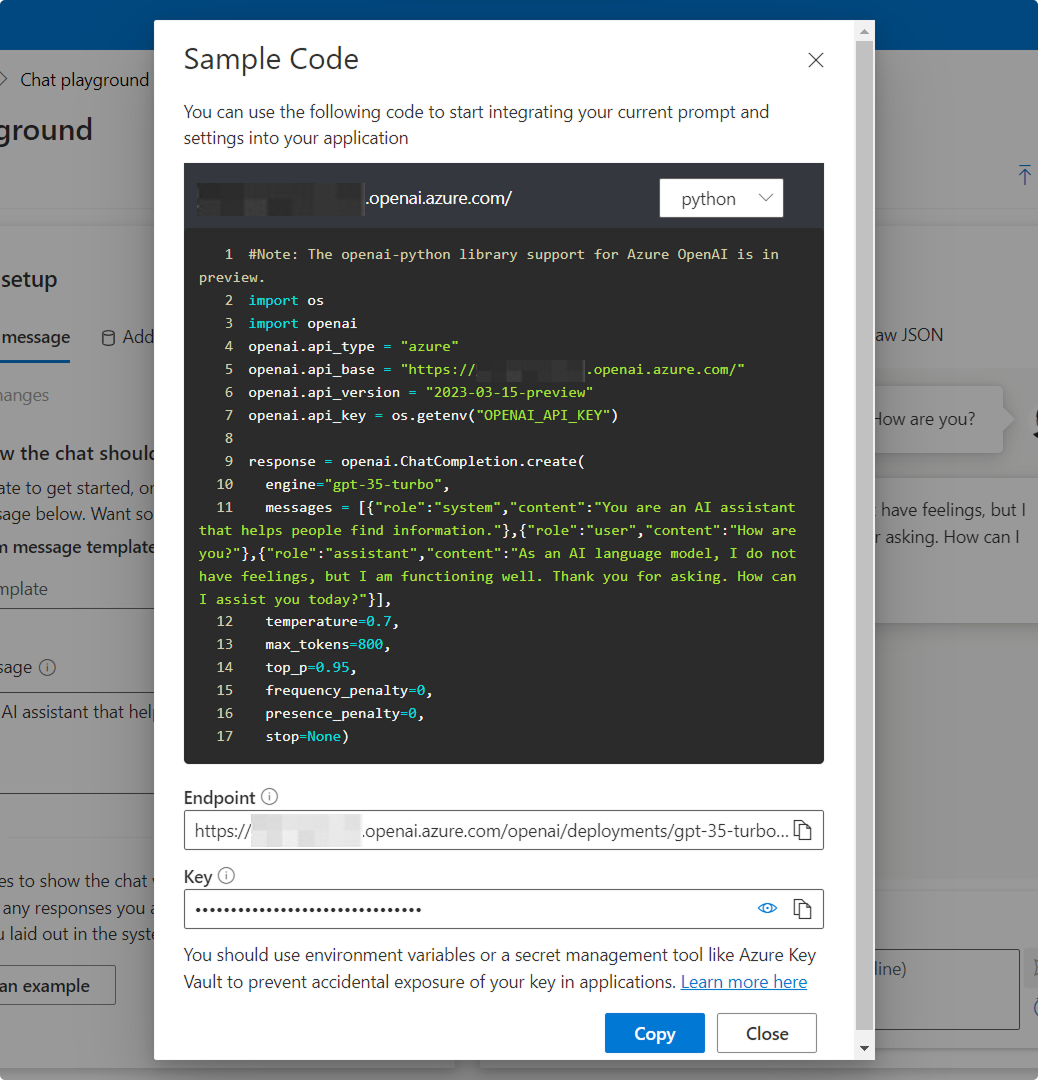
Step 3: Get Your Endpoint and API Key
The Endpoint and Key field represent the secret tokens used to authenticate your API requests to the Azure OpenAI service.
-
In the View Code panel, locate the endpoint URL and Key:
-
Endpoint: The full URL that your application uses to send requests (including the deployment name and API version).
-
Key: A sensitive API key used to authorize those requests.
-
Example of Endpoint Usage (for Completions)
Replace <your-resource-name> and <deployment-id> with your actual values in the following format:
https://<your-resource-name>.openai.azure.com/openai/deployments/<deployment-id>/completions?api-version=2023-05-15
Step 4: Find the Deployment Name
- At the top of the Playground, check the Model dropdown.
- The selected value is your Deployment ID (e.g.,
gpt-35-turbo). - This should match the deployment name used in your endpoint URL.
Step 5: Integrate Your Azure AI Agent with XR Creator Studio
Once you’ve set up an Azure AI assistant, you can integrate it into your XR project.
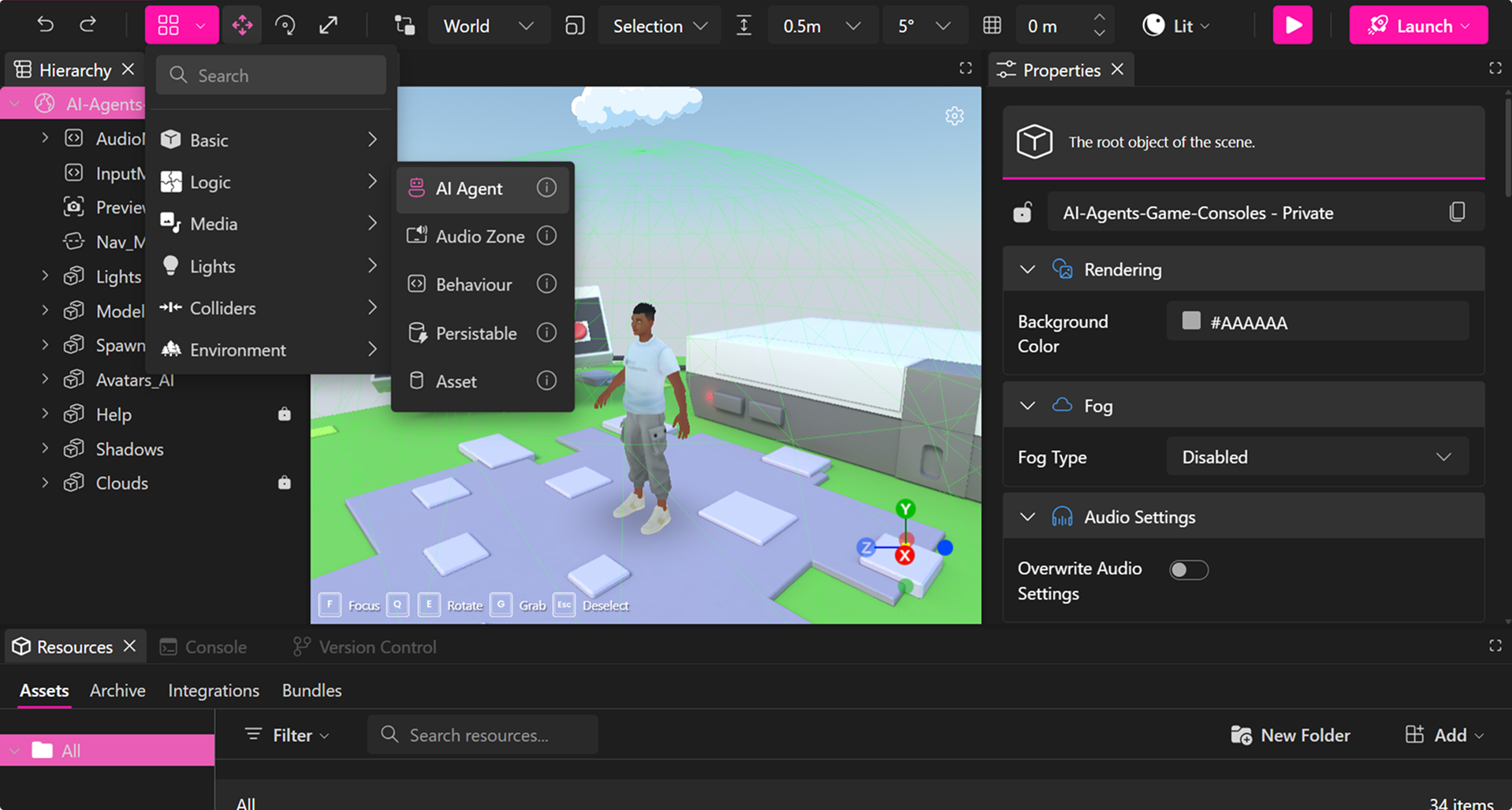
1. Add an AI Agent Element in XR Creator
- Open your project in the XR Editor.
- In the Elements Menu, select AI Agent.
2. Configure AI Agent Properties to Connect to Azure AI
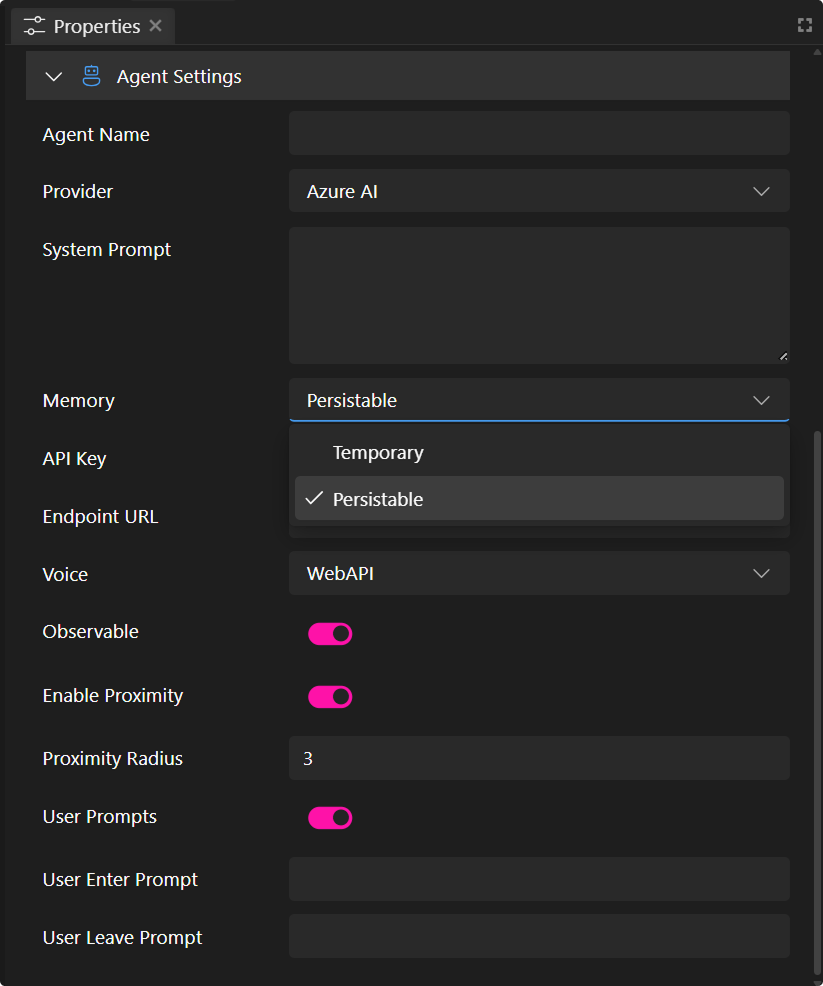
In the Properties Panel, you can set parameters to connect your AI Agent.
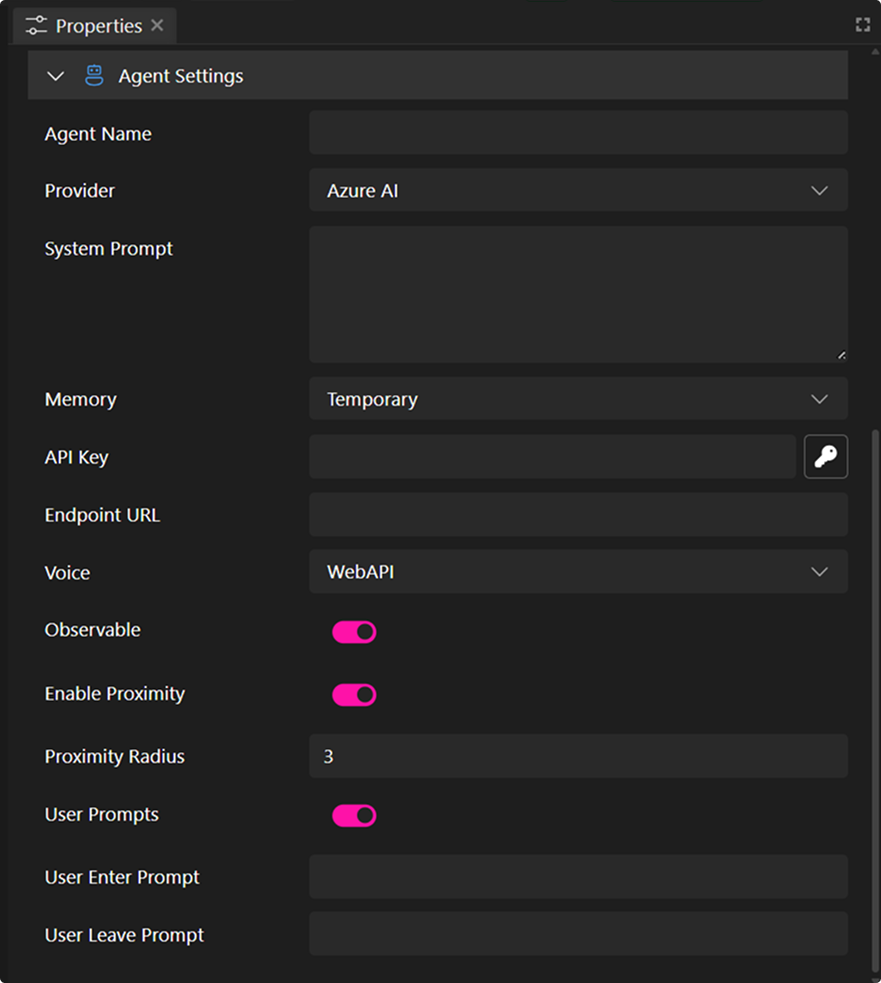
- Agent Name: This name will appear in the chat interface.
- Provider: Select the AI service. In this case, select the Azure AI Completion option.
- System Prompt: Instructions defining the AI's role, personality, or constraints (e.g., "You are a helpful assistant specializing in company products."). Max length ~4000 characters. This field is optional.
- Memory: Defines the type of memory your completion agent can use. By default, it operates with temporary volatile memory, meaning the agent retains chat history only during your session. Once you leave, the memory is erased. Alternatively, you can enable persistable memory, allowing the agent to maintain chat history across sessions.
- API Key: Enter your secret API key securely.
- Endpoint: (Required for Azure AI provider) The specific endpoint URL for your Azure OpenAI deployment. Which you can find in the Playground.
- Voice Options:
- WebAPI – Uses browser-based text-to-speech (varies by browser).
- Silent – The agent will only communicate via text chat.
- Observable (Emit Events): Enable this option to trigger in-world scripting events. These are especially useful when working with our Scripting API. See more in the AI Agent Event System guide.
- Enable Proximity: The agent can detect when a user enters or exits a defined range.
- Proximity Radius: Sets the distance (in meters/units) around the agent where proximity events (like user-enter or user-leave) are triggered.
- User Prompts: Enable this to allow the agent to show custom messages when users enter or leave its proximity.
- User Enter Prompt: The message the agent will say or display when a user enters the defined proximity radius.
- User Leave Prompt: The message the agent will say or display when a user exits the proximity radius. Only the API Key and the endpoint are not optional. Once your properties are set up, you can publish your project and have a fully functional Agent.
- User Prompts: Enable this to allow the agent to show custom messages when users enter or leave its proximity.
- Proximity Radius: Sets the distance (in meters/units) around the agent where proximity events (like user-enter or user-leave) are triggered.
Enable Persistable Memory for Completion Agents
You can enable persistable memory for your agent, allowing it to retain chat history across conversations.
To do this, select a Persistable element from the elements dropdown, which will automatically add it to the hierarchy panel.
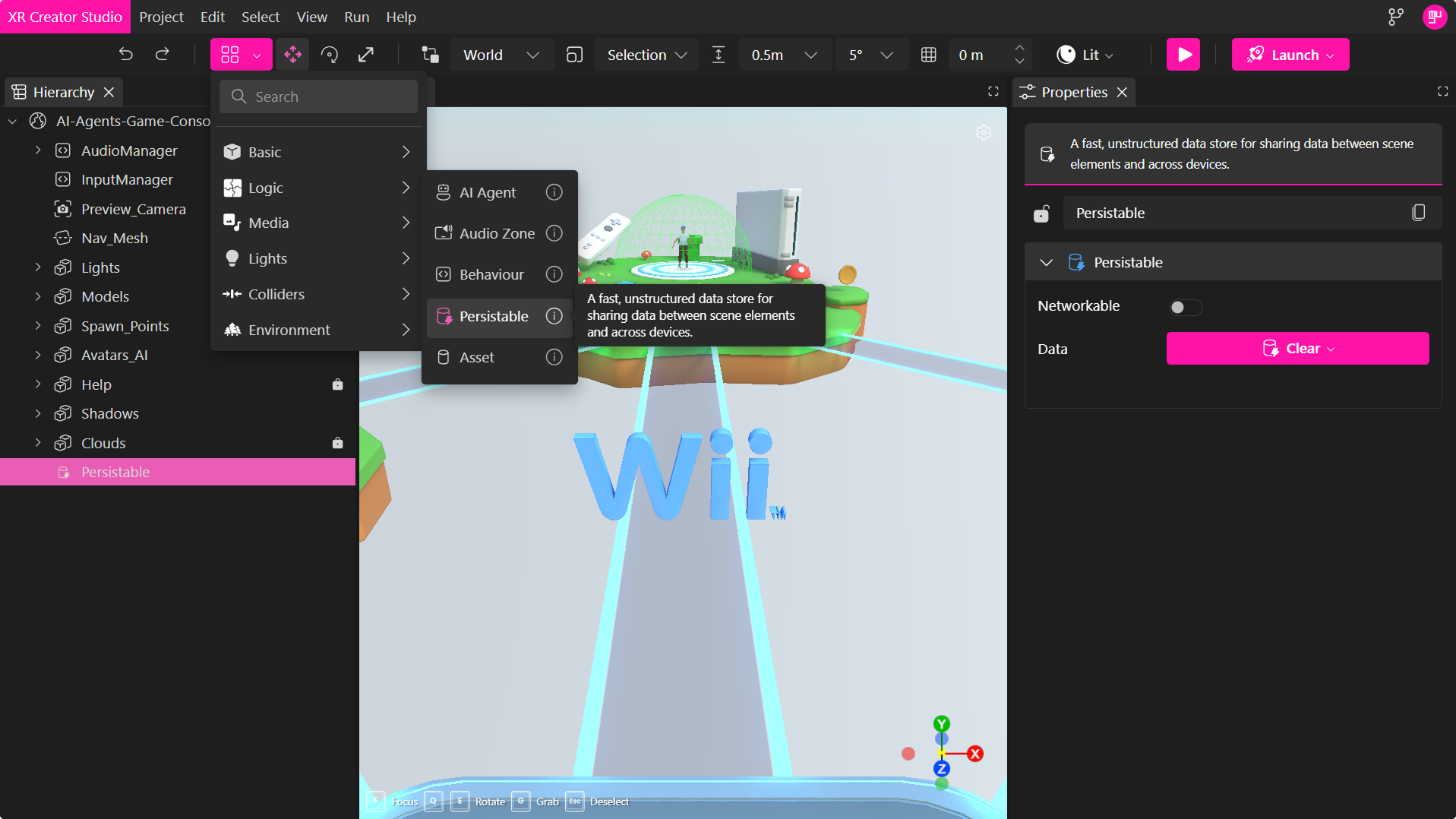
Next, in the agent's properties, choose the newly created persistable from the dropdown menu, then publish the verse.
This ensures your agent maintains conversation context and memory across sessions.