Workspaces
Workspaces provide a collaborative environment for managing projects, verses, and archive resources within the XRHUB for groups and teams. They enable teams to organize large sets of assets, distribute work across multiple groups, collaborate in parallel, and maintain efficient and secure workflows through granular permission controls.
Default Workspace
Users with workspace permissions, or those invited to a workspace, are automatically assigned a Default Workspace.
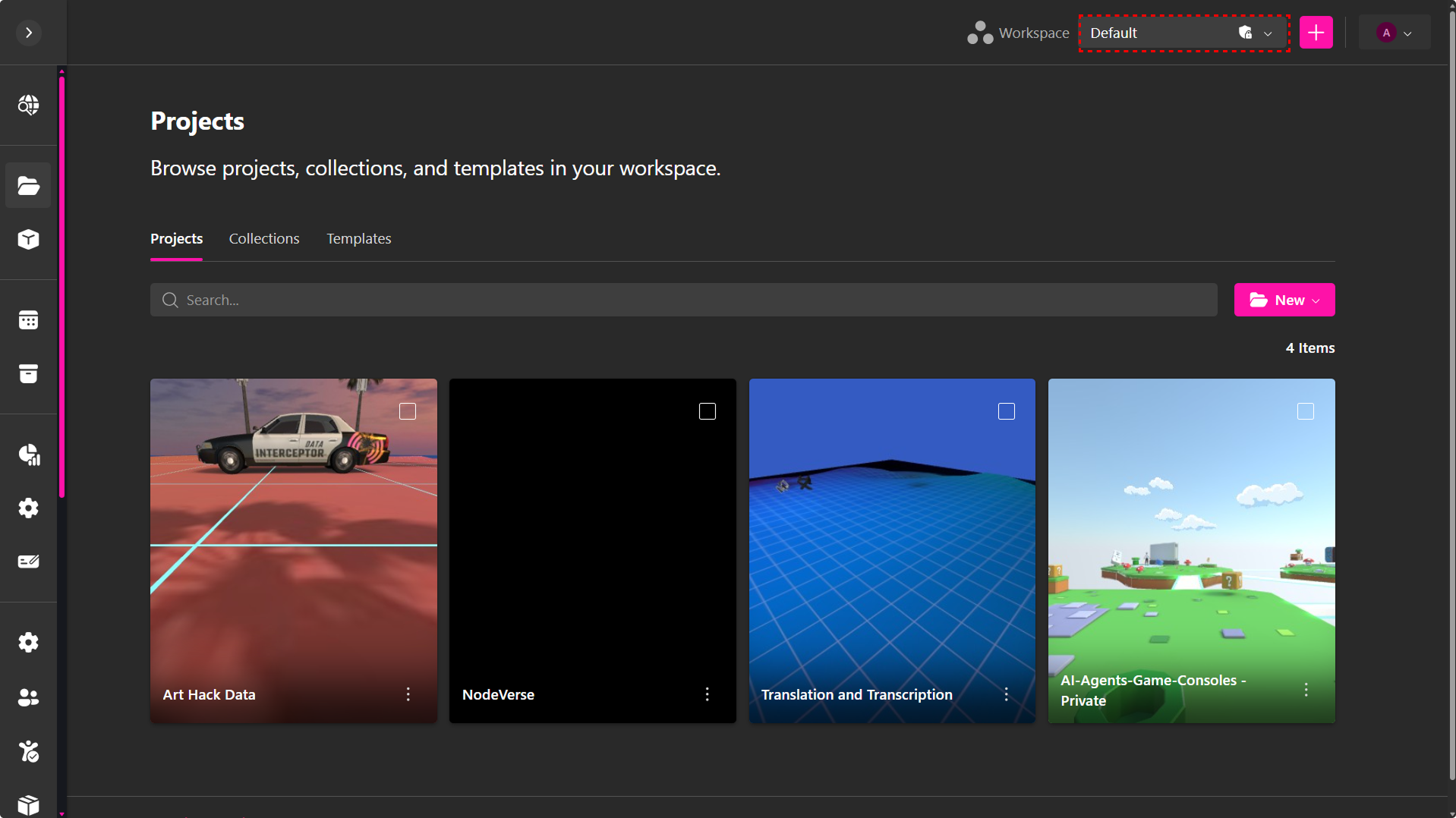
- The Default Workspace is private by default. It is your personal workspace, created with your account, where you can work independently, invite collaborators, and manage your projects alongside other workspaces.
- It cannot be deleted, ensuring that at least one active workspace always exists.
- It can be edited to adjust settings or permissions as needed.
Types of Workspaces
XRHUB supports two types of workspaces, depending on whether you are working alone or with a team.
Private Workspaces
Workspaces are private by default. If you don’t invite other users, the workspace remains visible and accessible only to you.
Private workspaces are ideal for:
- Organizing personal projects by theme, client, or purpose
- Separating experiments, prototypes, or internal work
- Managing assets without sharing access
No other users can view or edit content in a private workspace.
Team Workspaces
A workspace becomes a team workspace when you invite other users to collaborate.
Team workspaces allow you to:
- Invite members and assign role-based permissions
- Collaborate on projects and verses within the same workspace
- Manage shared assets, version history, and access control in one place
Team workspaces are designed for structured collaboration, ensuring that users only have access to the projects and actions permitted by their role.
Scope of Workspaces
Workspaces affect only the following resources:
All other tabs and features—such as Community, Activations, Settings, or Tiers—are global and remain accessible regardless of the selected workspace.
This means users in your workspace can access all workspace projects, verses, and archive resourses inside the XRHUB, the XR Creator Studio and the Metaverse.
Workspace Storage Ownership
Each workspace is owned by the user who created it. All projects, verses, templates, collections, and archive resources stored within a workspace use the storage quota of the workspace owner.
This means that:
- All collaborators in the workspace share the owner’s available storage
- Individual user storage limits do not apply to workspace content
- Storage usage is accumulated at the workspace level, not per member
This model ensures consistent availability of shared assets and avoids storage fragmentation across team members.
💡 Note: If you are invited to a workspace, any content you create or modify inside that workspace counts toward the workspace owner’s storage, not your personal account.
Creating and Managing Workspaces
Workspaces can be created by:
- Admins, or
- Users who have been granted Workspace permissions.
Each workspace operates independently, allowing teams to separate content, control access, and manage ownership without affecting other workspaces.
To create a workspace:
- Locate the Workspace selector in the top navigation bar
- Click the ➕ (Create Workspace) button
- Enter a workspace name
- (Optional) Invite users by entering their email addresses
- Press Enter to add each email
- You can add multiple emails separated by commas
- Adjust each user’s role as needed to match the permissions you want them to have in the workspace
- Click Create
Invited users will receive an email invitation to join the workspace. They must accept it to gain access.
Workspace Management
The Workspace management has been centralized into a dedicated interface, allowing owners and admins to control settings, members, and access from a single location.
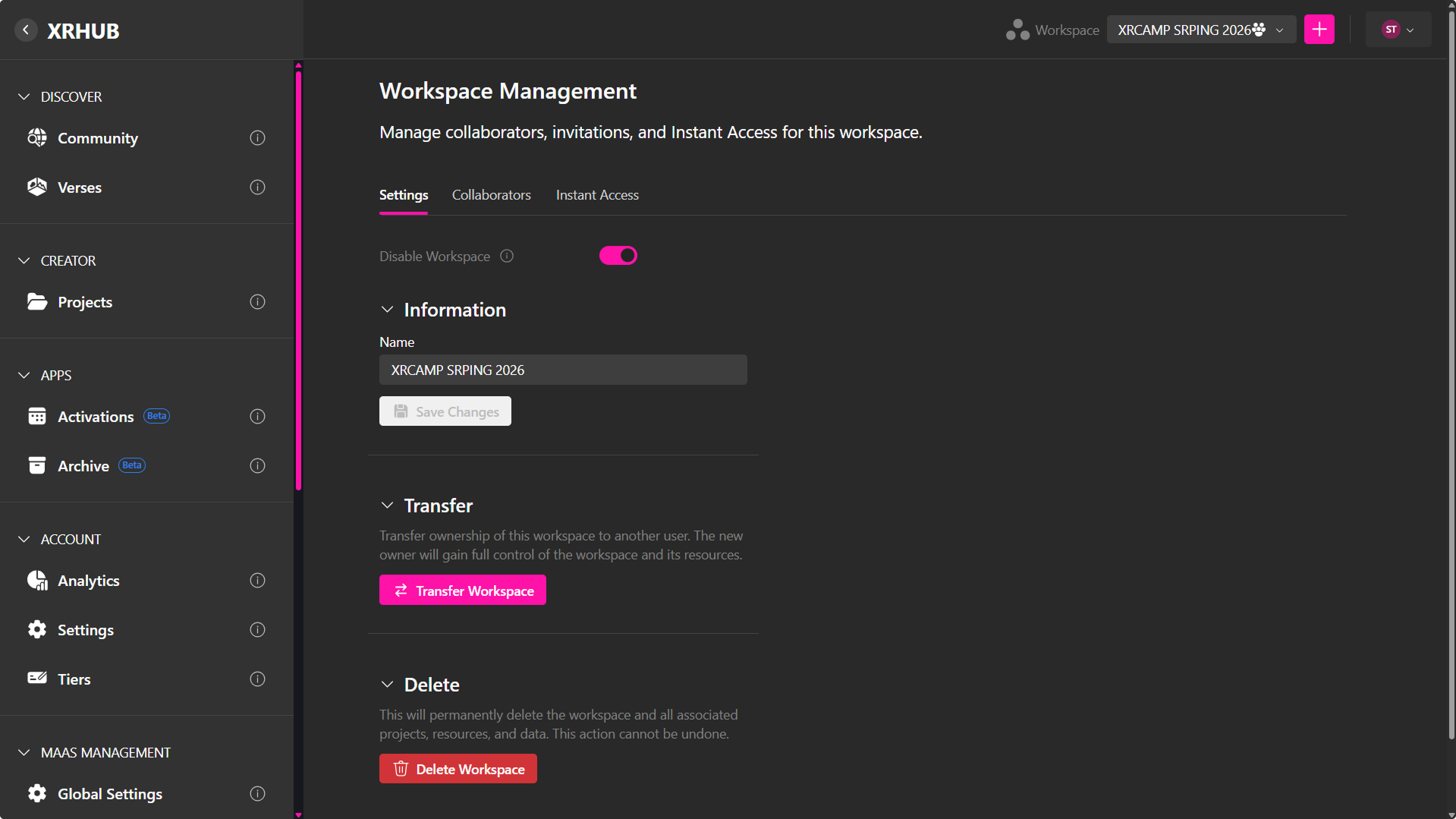
To access it:
- Open the workspace selector
- Click the Actions menu (⋯)
Workspace Management is organized into three main tabs:
- Settings
- Collaborators
- Instant Access
Settings
The Settings tab contains all core workspace configurations and administrative actions.
From here, you can:
- Rename the workspace
- Disable or enable the workspace
- Transfer workspace ownership
- Delete the workspace
Disabling a Workspace
Workspaces can be temporarily disabled when you need to restrict access without permanently deleting content.
Note: Only the Workspace Owner can disable a workspace.
Disabling a workspace will:
- Prevent Admins, contributors and Viewers from accessing the workspace
- Display a message to restricted users:
"This workspace is disabled by the owner." - Preserve all projects, verses, archive resources, and version history
The workspace and all its data remain intact.
Who can access a disabled workspace?
- Owner — Full access
- Admins, Contributors and Viewers — No access while disabled
Owners can continue editing, managing members, and updating content while the workspace is disabled.
💡 Use Disable when you need to temporarily pause collaboration without removing content or members.
Deleting a Workspace
Workspaces can be permanently deleted when they are no longer needed.
Note: Only the Workspace Owner can delete a workspace.
Deleting a workspace will:
- Permanently remove the workspace
- Delete all associated projects, verses, archive resources, and version history
- Remove all members from the workspace
- Free the storage associated with the workspace
This action cannot be undone.
Once confirmed, the workspace and all its data are permanently removed from the system.
If you plan to delete your account, you must first delete any workspaces you own that include other members.
- Workspace ownership cannot remain assigned to a deleted account.
- All owned workspaces must either be deleted or transferred to another user before account deletion can be completed.
Make sure to manage or transfer ownership of your workspaces before proceeding with account deletion.
Transfering Workspaces Ownership
Workspace ownership can be transferred to another member when needed (for example, organizational changes or project handoffs).
To transfer a workspace:
- Open the Workspace selector
- Click the Actions menu (⋯) next to the workspace
- Select Transfer Workspace
- Choose an existing workspace member as the recipient
- Complete identity verification by entering the code that will arrive on your email
- Confirm the transfer
Transfer Approval Process
After the transfer is initiated:
- The selected user receives an email notification
- The transfer remains pending until the recipient accepts
- The workspace ownership does not change until acceptance is completed
The recipient must accept the transfer request for ownership to be reassigned.
If the recipient declines or does not accept, the workspace remains under the current owner.
What Happens After Acceptance
Once the recipient accepts the transfer:
- The recipient becomes the new Workspace Owner
- The previous owner is automatically reassigned the role of Contributor
- All workspace projects, verses, assets, and version history remain intact
- Storage usage is reassigned to the new owner's account
Ownership transfer does not affect project deployments or published experiences.
Transfer Requirements
To receive a workspace, the selected user must:
- Be an existing member of the workspace
- Have sufficient available storage
- Have enough project capacity available under their subscription plan
If the recipient exceeds storage or project limits:
- The transfer cannot be completed
- The recipient must upgrade their plan before accepting the workspace
This ensures all workspace data fits within the new owner’s plan limits.
Only the Workspace Owner can transfer ownership. Admins, collaborators and vierwers can't.
Collaborators
The Collaborators tab is where you manage members, roles, and invitations.
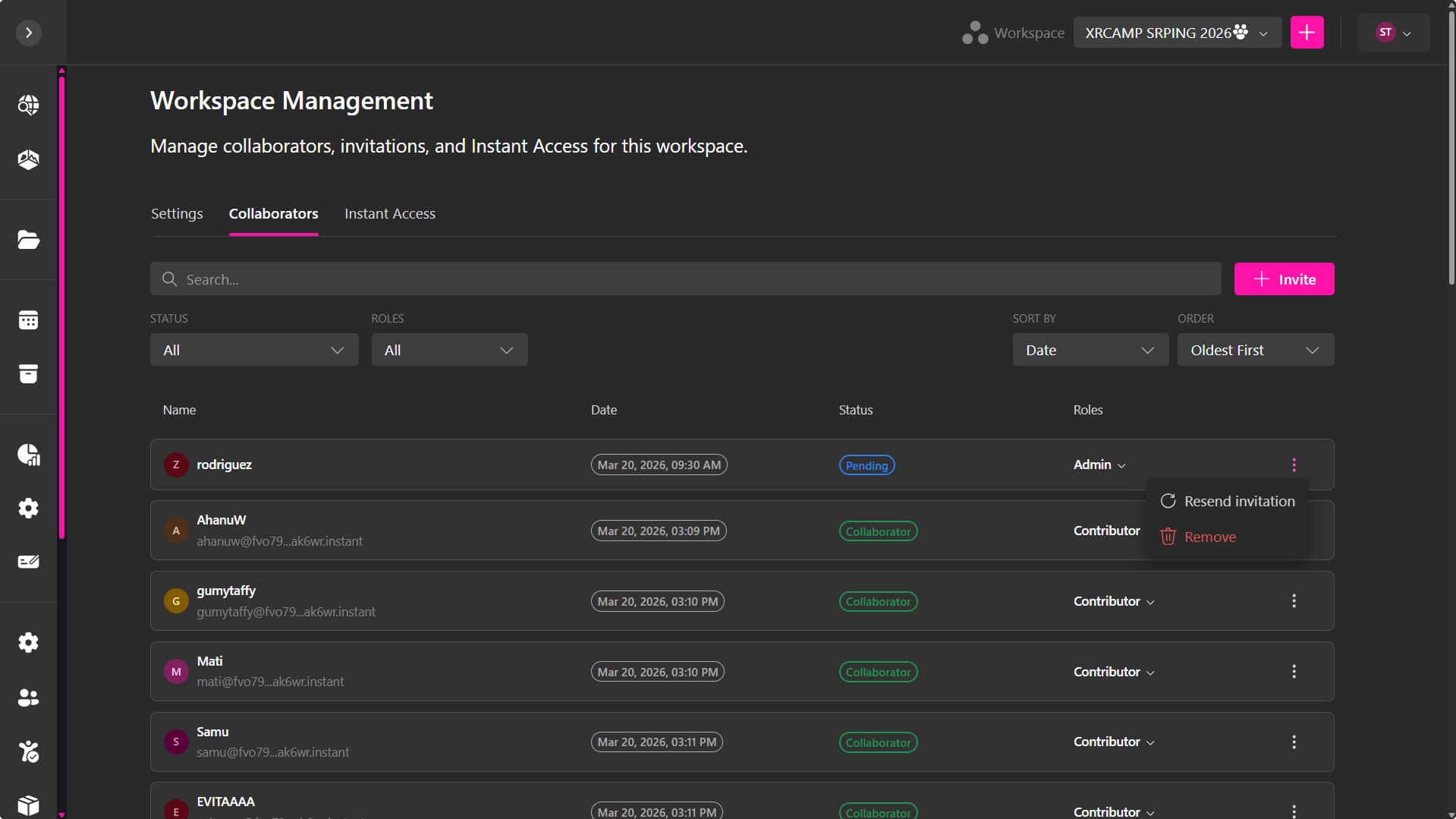
From here, you can:
- Invite users
- View all collaborators
- Assign and update roles
- Remove users
- Manage pending invitations
This is the central place for managing who has access and what they can do within the workspace.
Inviting Collaborators
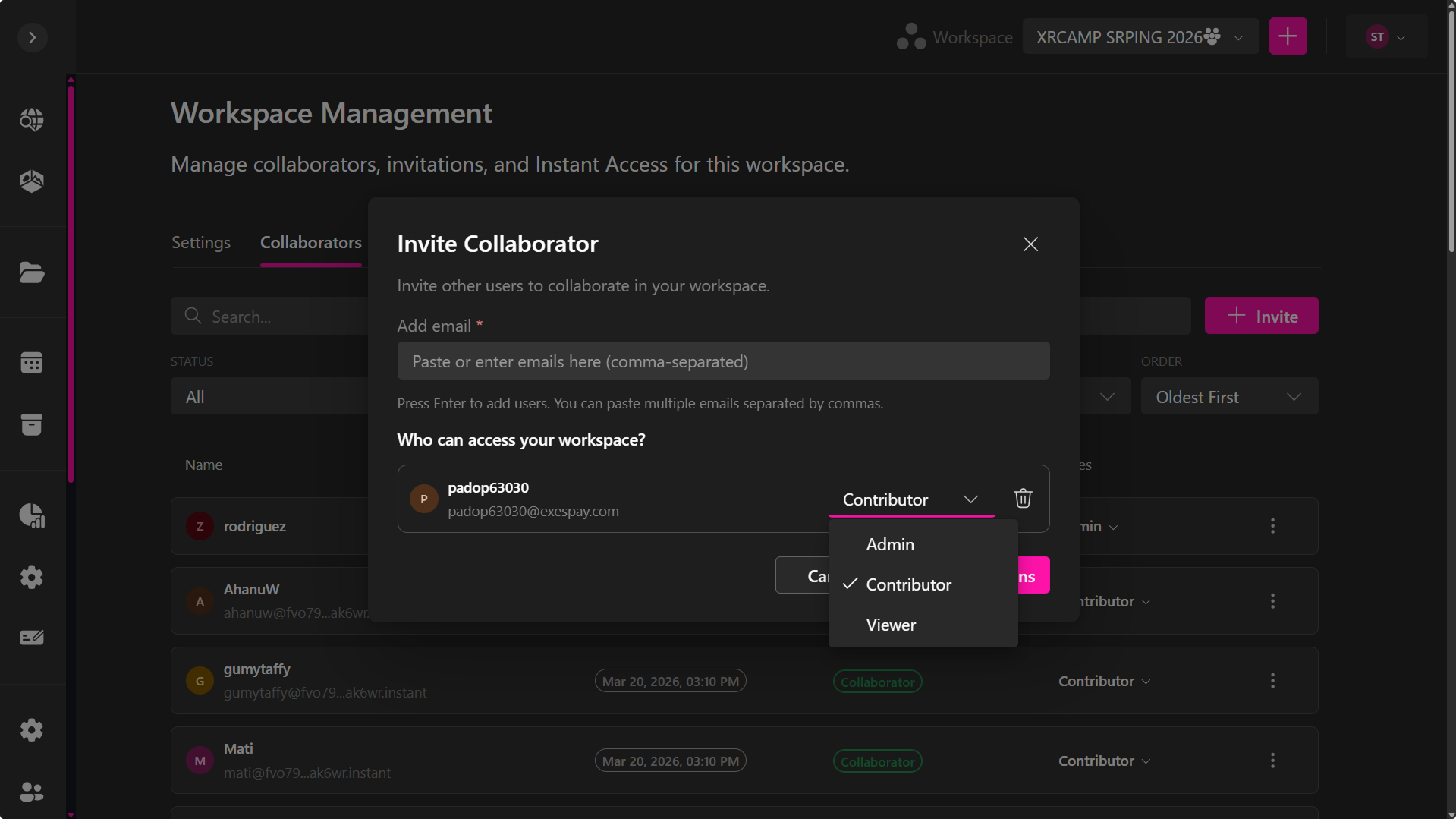
To invite users:
- Click + Invite
- Enter one or multiple email addresses
- Press Enter after each email
- Or paste multiple emails separated by commas
- Assign a role:
- Admin — Full control over workspace settings, members, and access
- Contributor — Can create and edit workspace content
- Viewer — Read-only access
- Click Send Invitations
Invited users will receive an email invitation to join the workspace.
Invitation Status
Each user has a status:
- Pending — Invitation sent but not accepted
- Collaborator — User has joined the workspace
For pending users, you can:
- Resend invitation
- Remove invitation
Workspace permissions
Workspace permissions control what each member can see and manage within a workspace. Permissions apply to projects, verses, collections, templates, and archive resources in the selected workspace.
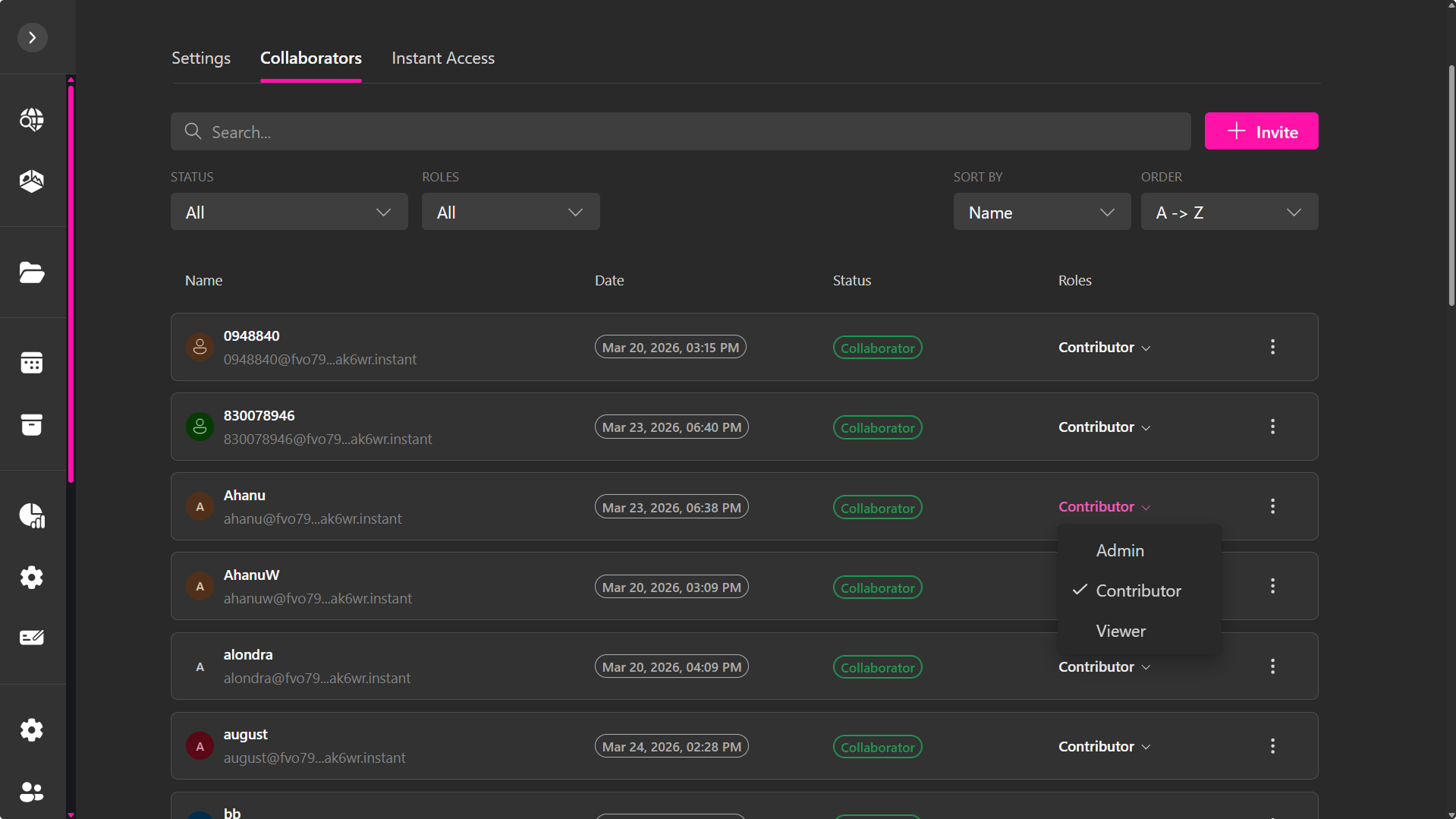
Each member is assigned one of the following roles:
◆ Viewer:
Users with Viewer permission have read-only access to the workspace.
Viewers can:
- View projects, verses, assets, collections, and templates
- Open and preview content
Viewers cannot:
- Edit or save changes
- Create, delete, or publish projects
- Invite or remove workspace members
- Change roles or permissions
Use this role for stakeholders, reviewers, or clients who need visibility without editing access.
◆ Contributor:
Users with Contributor permission have content editing access in the workspace.
Contributors can:
- Create, edit, and save projects
- Work with collections and templates
- Collaborate using Control Versioning (personal branches, drafts, and history)
- Publish content (if allowed by project rules)
Contributors cannot:
- Invite or remove users
- Change workspace roles or permissions
- Delete the workspace or any workspace content
Use this role for designers, builders, and collaborators actively working on content.
◆ Admin
Users with Admin permission have Ffll workspace access.
Admins can:
- Do everything Contributors can do
- Invite and remove workspace members
- Assign and change user roles
- Manage templates
- Control access and permissions
Admins cannot:
- Delete the Workspace
- Transfer the workspace
Use this role for team leads or workspace managers responsible for access control and organization.
Instant Access
The Instant Access tab allows you to create temporary, workspace-only users for quick collaboration without requiring full account registration or email.
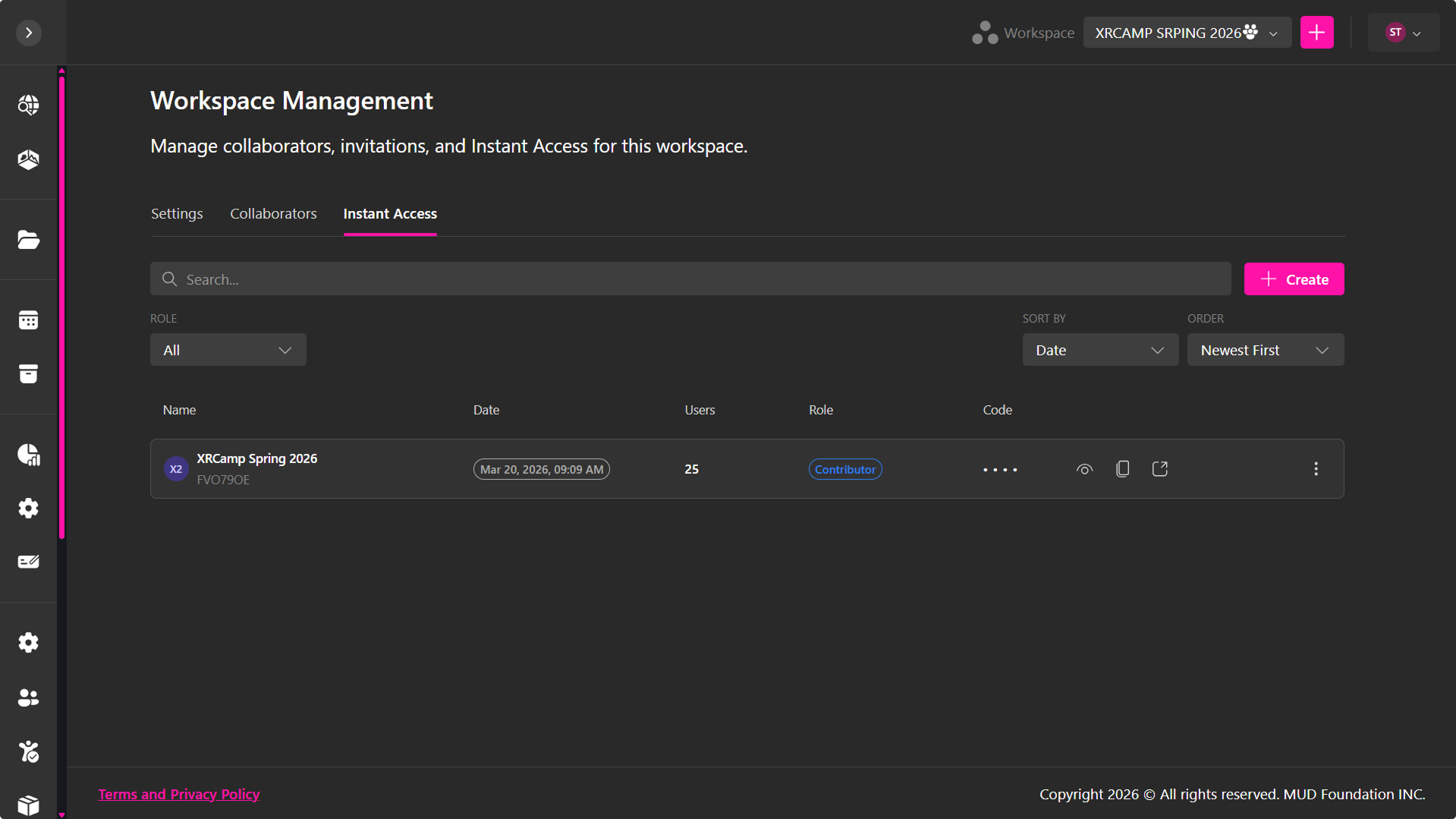
With Instant Access, you can:
- Generate a unique access URL tied to the workspace
- Allow users to create temporary accounts using:
- A display name
- A personal access code
- Enable users to immediately join and collaborate
Creating an Instant Access Link
The Instant Access link creates a dedicated entry point where users can join your workspace using an instant account.
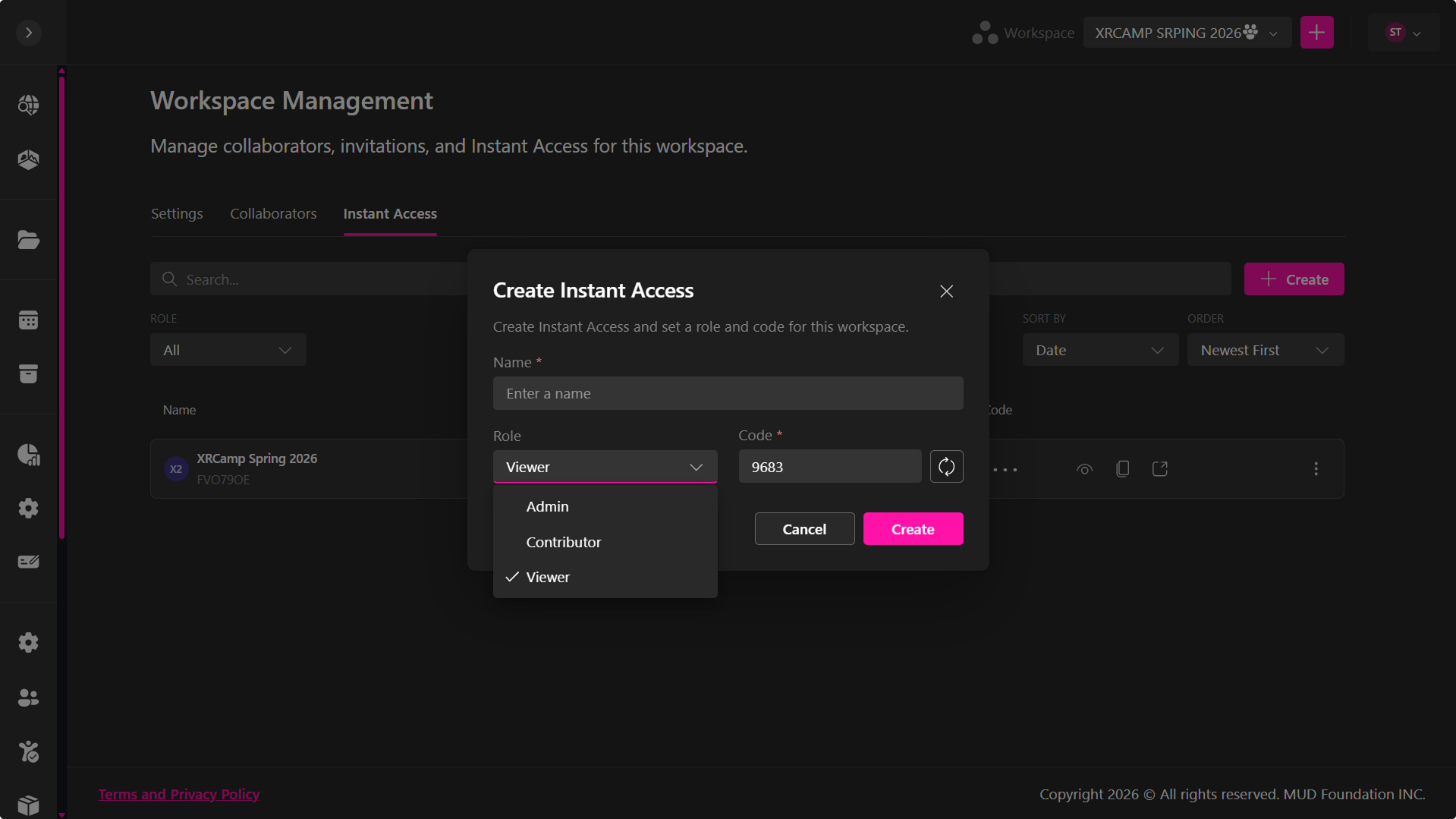
To create a new Instant Access:
- Click + Create
- Enter a name
- Select a workspace permission:
- Viewer
- Contributor
- Admin
- Set an access code:
- Enter your own, or generate a random one
- Click Create
Once created:
- A unique access link is generated
- The code is visible to workspace admins
- You must share both the link and code for users to enter
All users will join with the assigned role.
💡 Create multiple links if you need different roles.
Creating an Account with Instant Access
- Share the link, it should be something like
- User enters the access code
- User logs in or creates an account
- User enters:
- Name
- Password
- Click Join
After joining:
- User gains workspace access
- Permissions match the assigned role
- User can update their name
You will see:
- User name
- Associated access code
Important Behavior
- Instant Access users are workspace-specific
- They are not part of the global account system
- Access is fully controlled from this tab
Disabling, removing, or revoking access takes effect immediately.
To learn more about managing Instant Access, see the dedicated section.
Version Control in Workspaces
Workspaces are designed to support collaboration across teams, allowing multiple users to work on the same projects without interfering with each other. To make this possible, every project within a workspace is backed by Version Control.
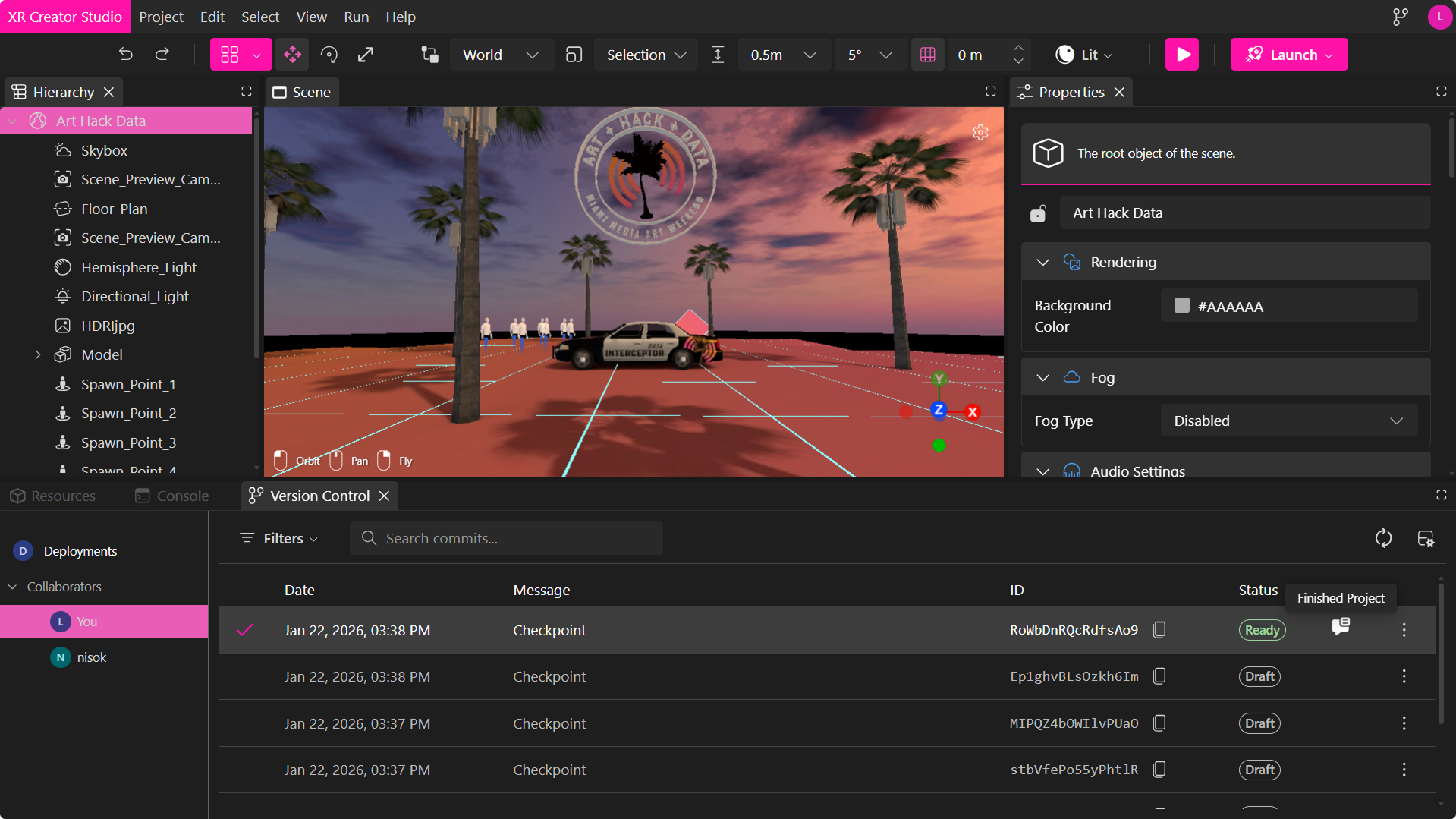
Version Control enables multiple contributors to work in parallel while keeping each user’s changes isolated, traceable, and safe.
Within a workspace, Version Control provides:
- Parallel collaboration without overwriting teammates’ work
- Clear visibility into active collaborators, including who is working on each branch
- Safe branch switching to review, compare, or continue work from other contributors
- Reliable, conflict-free saves, even when multiple users save simultaneously
- Controlled merging and publishing, allowing teams to combine work and deploy projects to development or production environments
This approach allows teams to iterate quickly while maintaining a complete and traceable history of changes for every project within the workspace.
To learn more about how Version Control works at the project level, see the Version Control section for Projects.