Version Control for Team Projects
For collaborative projects, Version Control enables true parallel development across teams.
Each contributor works in their own user branch, allowing multiple people to edit the same project simultaneously—without overwriting each other’s work or blocking progress.
Every change remains isolated, traceable, and reversible, while collaboration stays fast, flexible, and safe.
Creating Your User Branch in a Team Project
Your personal user branch is created automatically the first time you interact with a team project—no setup required.
A user branch is created when you:
- Open an existing team project
- Make any change and save, or
- Publish the project to your Development environment
Once your user branch exists:
- All future saves are recorded in your personal history
- You can checkout, review, and merge work from other collaborators
- Other users can review and merge your changes, depending on their permission level
This workflow allows teams to move quickly while keeping each contributor’s work independent, reviewable, and safe.
Collaboration Features
Version Control provides a complete set of tools designed specifically for team workflows:
- View collaborator commit histories for review or testing
- Checkout collaborator checkpoints to inspect or validate changes
- Merge approved changes into your own branch
- Review comments and readiness signals before merging
- Automatic merge records for full traceability and accountability
XR Creator Studio manages version integrity automatically—no manual branching, file locking, or conflict resolution is required.
Viewing Collaborator Commits
You can explore another collaborator’s work—including drafts, ready-for-review checkpoints, comments, and changes—without affecting your own branch.
This makes it easy to:
- Test features
- Validate logic
- Review progress
- Provide feedback before merging
To view a collaborator’s work:
- Select the collaborator in the Version Control panel
- Click any of their checkpoints to inspect the changes
Checking Out a Collaborator’s Checkpoints
Checking out a collaborator’s checkpoint restores your editor to match that specific saved state.
To do this:
- Open the Actions menu (⋮) on the desired checkpoint
- Click Checkout
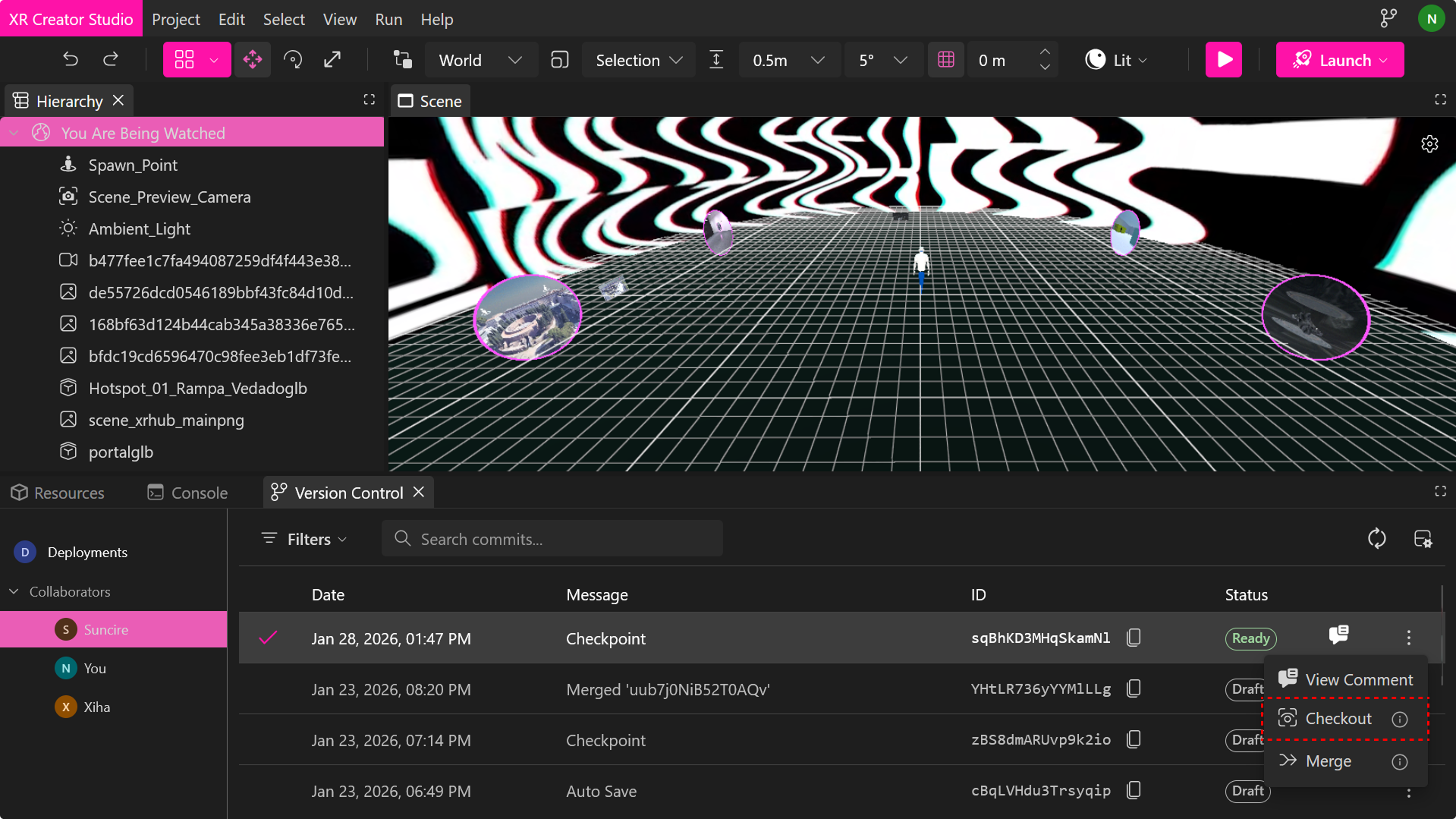
This action:
- Instantly updates your editor to the selected state
- Does not delete newer checkpoints
- Is fully reversible at any time
Merging Approved Changes Into Your Branch
Once changes are reviewed and approved, they can be safely merged into your branch.
To merge:
- Open the Actions menu (⋮) on the selected checkpoint
- Click Merge
Merging:
- Applies the selected checkpoint’s changes to your current branch
- Layers incoming changes on top of your current work without overwriting it
- Updates only the shared objects that require merging
- Preserves your existing work and full version history
- Creates an automatic merge record for complete traceability
This allows teams to combine work confidently without overwriting progress.
Reviewing Comments and Readiness Signals
Collaborators can leave comments and mark checkpoints as Ready for review, helping teams coordinate feedback and decide when changes are safe to merge or publish.
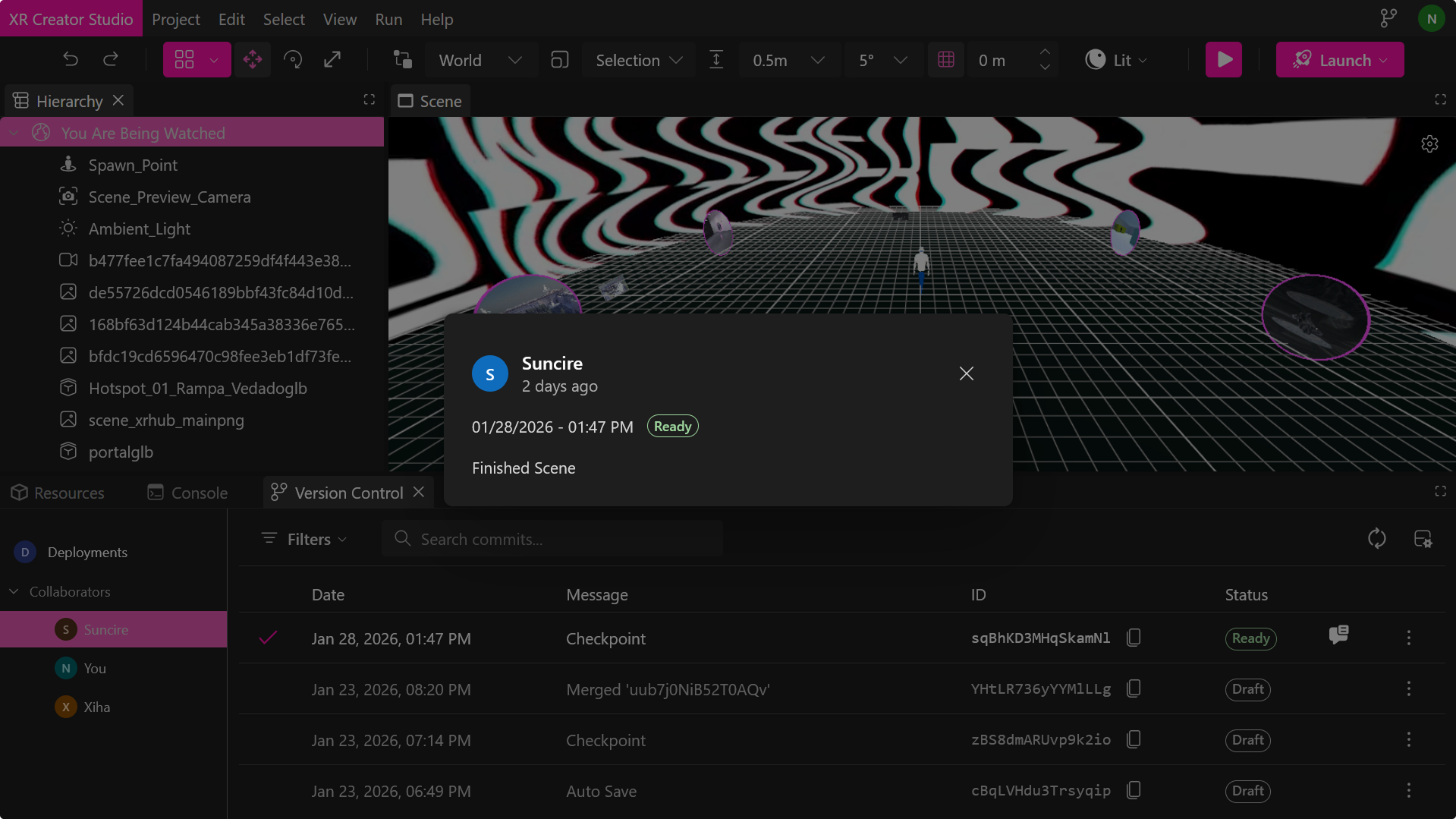
For example:
- A teammate completes a feature
- Marks the checkpoint as Ready for review
- Leaves a comment explaining the change
This signals to others that the work is stable and ready to be reviewed or merged.
Filters
The Filters dropdown allows you to refine which checkpoints are visible in the panel.
Available filters:
- Draft — Shows work-in-progress checkpoints that are not yet marked as ready
- Ready — Shows checkpoints marked as ready for review or merging
This helps teams quickly focus on items that require attention or approval.
Search Commits
The Search commits field allows you to search checkpoints by message or ID.
This is useful for:
- Locating specific changes
- Finding a known commit ID
- Reviewing historical updates quickly
Refresh Version Control
The Refresh button updates the Version Control panel to reflect the latest available changes.
Use Refresh to:
- Load new commits from other collaborators’ branches
- Sync changes from the Development or Production deployment branches
- Ensure you are viewing the most recent project history
This is especially important in team environments where multiple users may be saving, merging, or deploying simultaneously.
Refreshing does not modify your branch — it only updates the visible commit history and branch data in the panel.
Publishing and Deployment
Drafts and checkpoints are optimized for iteration.
Publishing is the step where the project is built and deployed to an external environment.
When a project is published:
- Final build artifacts are generated
- A deployment record is created
- The selected environment is updated
- All drafts and checkpoints remain available in version history
Publishing never deletes or replaces drafts—it simply captures a snapshot and deploys it.
Deployment Environments
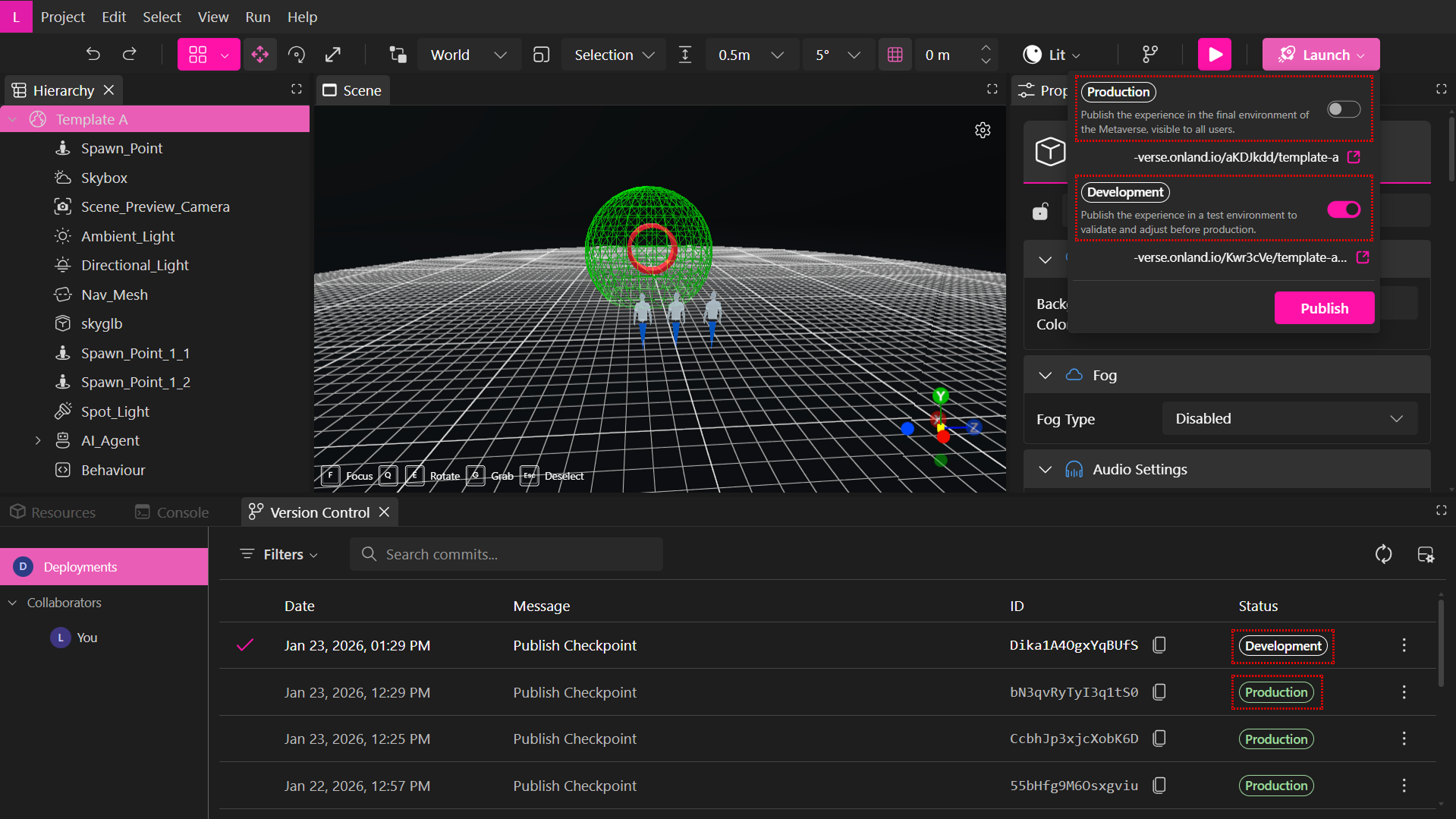
Development
- Used for testing, validation, and internal reviews
- Generates a playable build in a test environment
- Safe for experimentation and frequent publishing
- Can be republished multiple times without affecting live users
- Each collaborator has their own isolated Development environment
Development deployments are not saved or shown in the Verses tab. They exist only for individual testing and iteration.
Production
- Represents the live, public version of the project
- Used for external sharing and real users
- Only the project owner or admins can deploy to Production
- Each Production deployment replaces the previously active one
- Only Production deployments appear in the Verses tab
Deployment Permissions
In team projects, deployment capabilities depend on the user’s role:
- Collaborators → Can deploy to Development only
- Admins / Owner → Can deploy to Development and Production
This ensures that all contributors can test and iterate independently, while Production releases remain intentional, reviewed, and controlled.